

For people who install cameras, and the people they install them for
Your cameras. One local view.
Cameras from almost any brand, on your own Wi-Fi, on a phone, a tablet or a television. No account and no cloud. And when a camera will not connect, ViewTile tells you what went wrong and what to do next.
When it fails
It says what went wrong, and what to do next
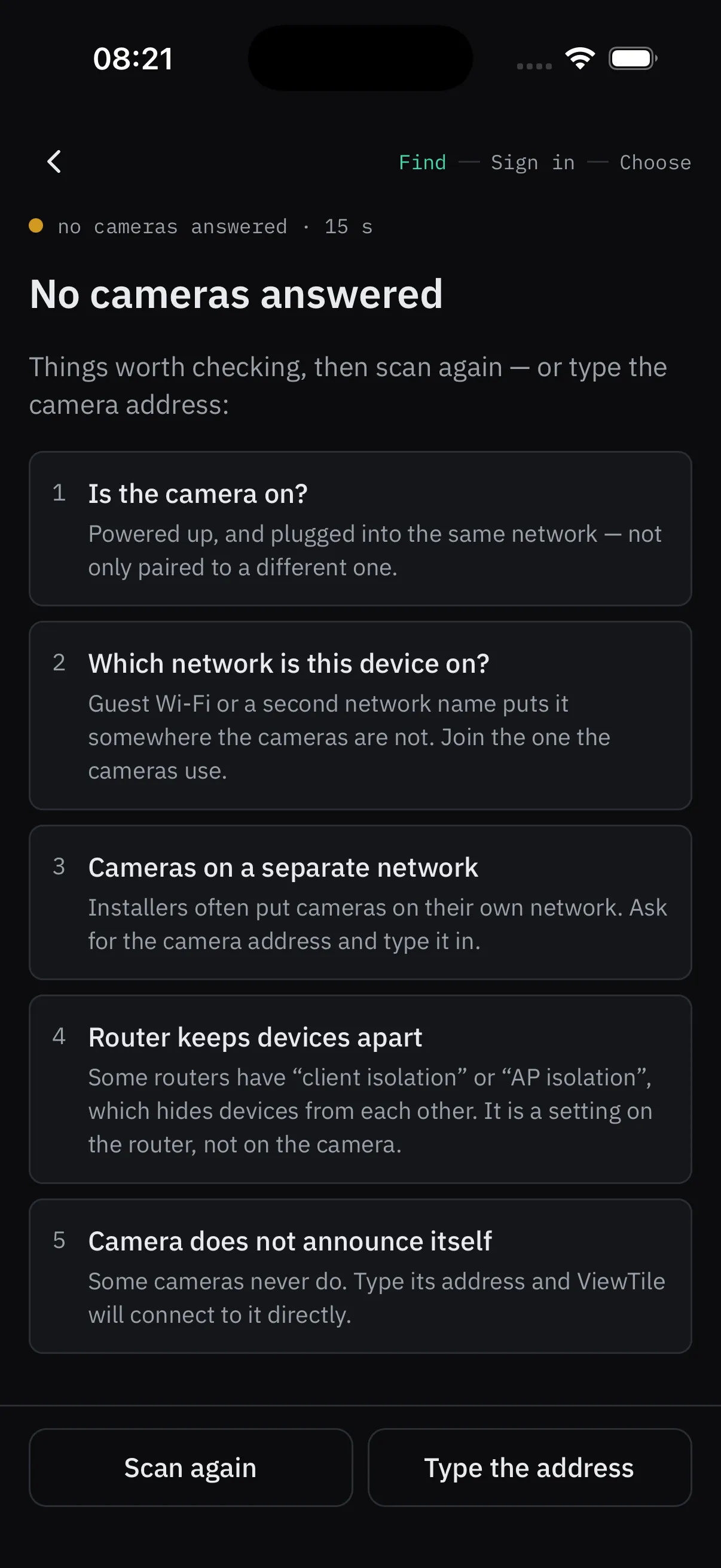
Most camera apps stop at “connection failed”. ViewTile checks the camera one step at a time and names the step that broke.
The camera refuses the sign-in because its clock is too far from this phone’s. It also moved between two checks, so ViewTile cannot work around it.
- Camera clock
- 47 min ahead of this phone
- Between two checks
- moved by 1 h 47 min
- The camera said
- “not authorised”, twice
→Set the camera’s time, or turn on automatic time on the camera, then try again.
The symptom
The camera keeps refusing your password — and the password is right. It is one of the most common calls an installer gets, and the usual answer is a factory reset.
What ViewTile checked
Before signing in, it compared the camera’s clock with the phone’s. The camera was 47 minutes ahead, and it drifted again between two checks. ViewTile works around a small difference; this one was too big and kept moving, so the likely cause was the clock, not the password.
What to do
Set the camera’s time, or switch on automatic time on the camera, and try again. No guessing and no reset.
A real case from ViewTile’s tests, in the words the app uses. Every failure comes with a likely cause and a next step, and the camera’s own page keeps its last answers so you can copy a report and send it to whoever can help.
Setting up
Three steps, on the ground
Find
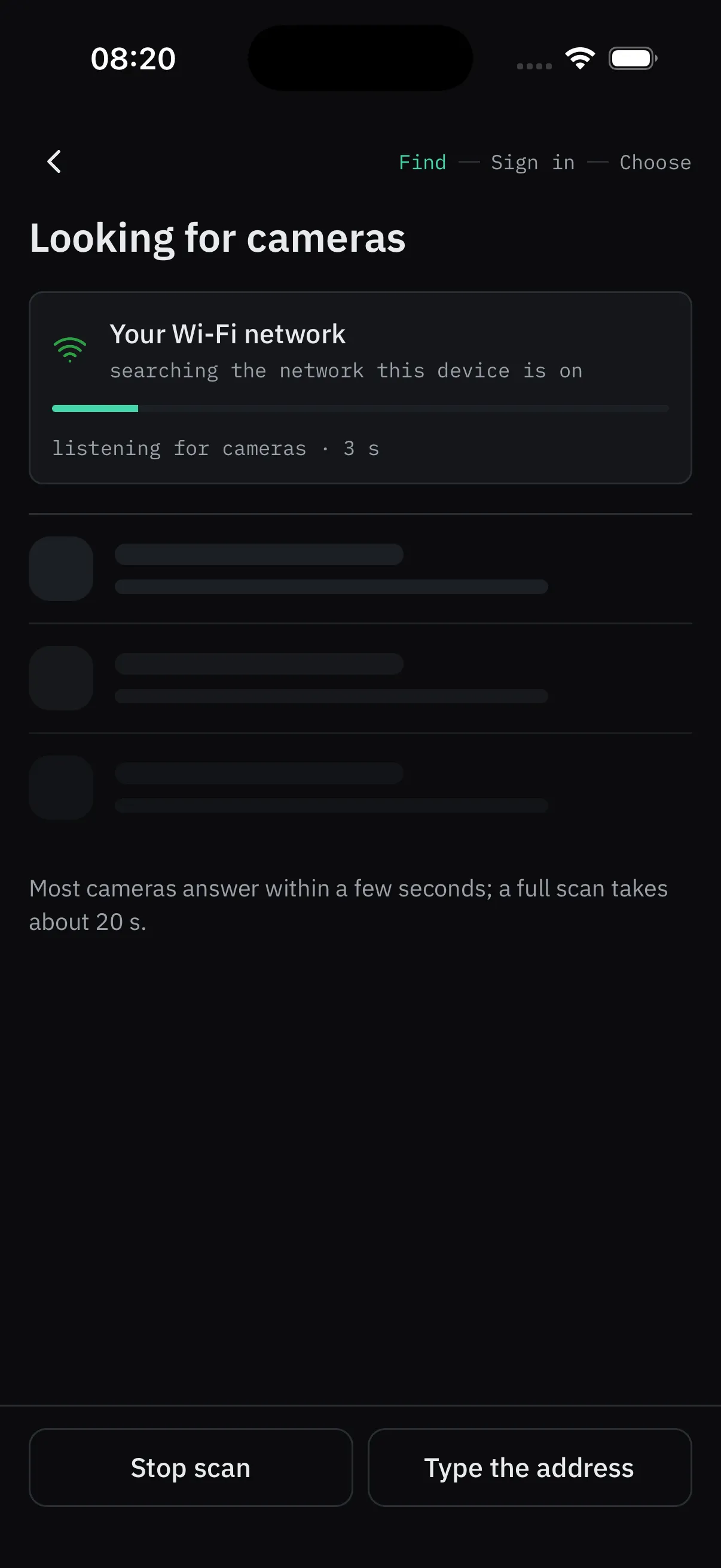
Open ViewTile on the Wi-Fi the cameras are on. It looks for them by itself; you can also type an address.
Sign in
Use the camera’s own username and password — not the Wi-Fi password. ViewTile checks the connection, the login, the clock and the picture, and tells you which step failed if one does.
Adjust
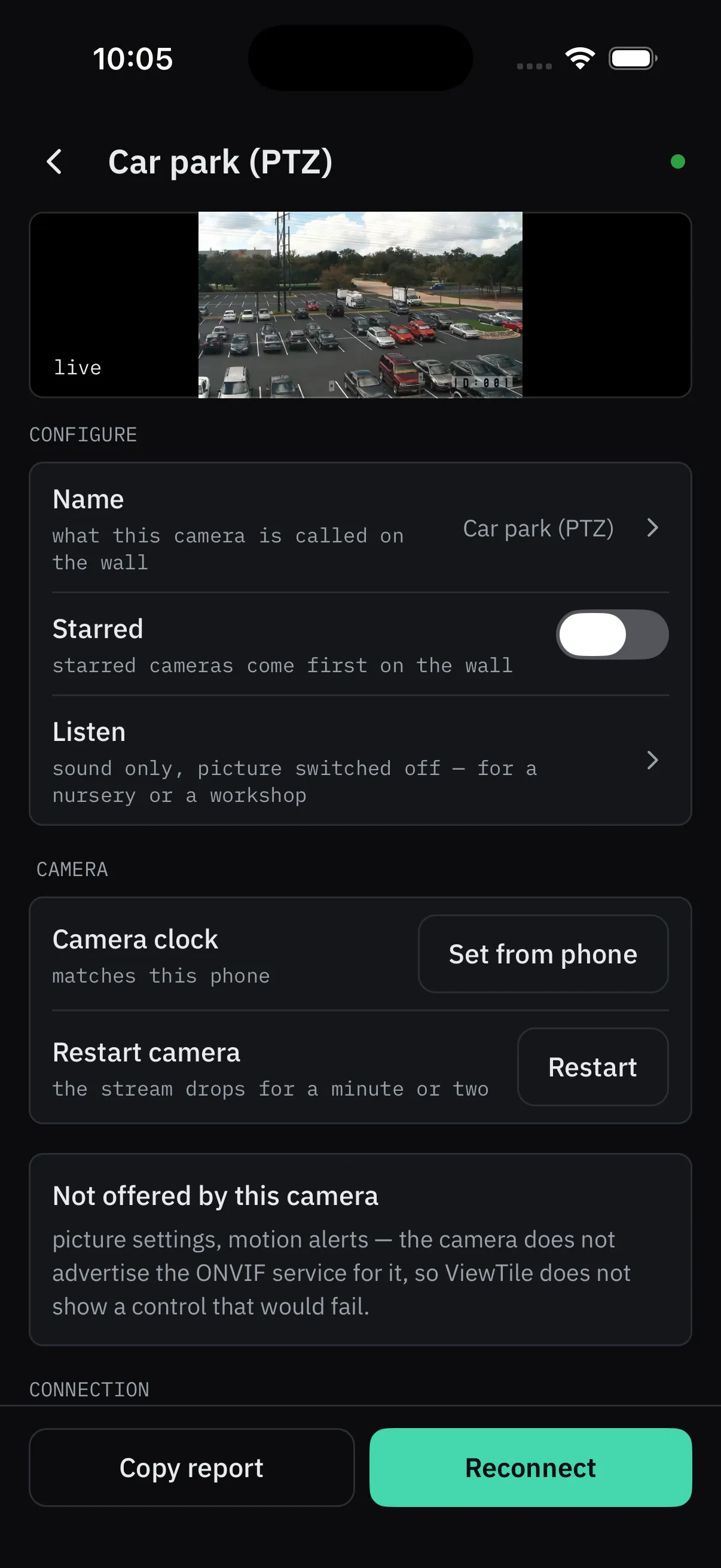
Name the camera, choose which picture the wall uses, and tune the resolution, the picture and the camera’s movement from the camera’s own page — where the camera offers them. It says plainly what this camera does not offer.
Every day
A wall you can actually watch
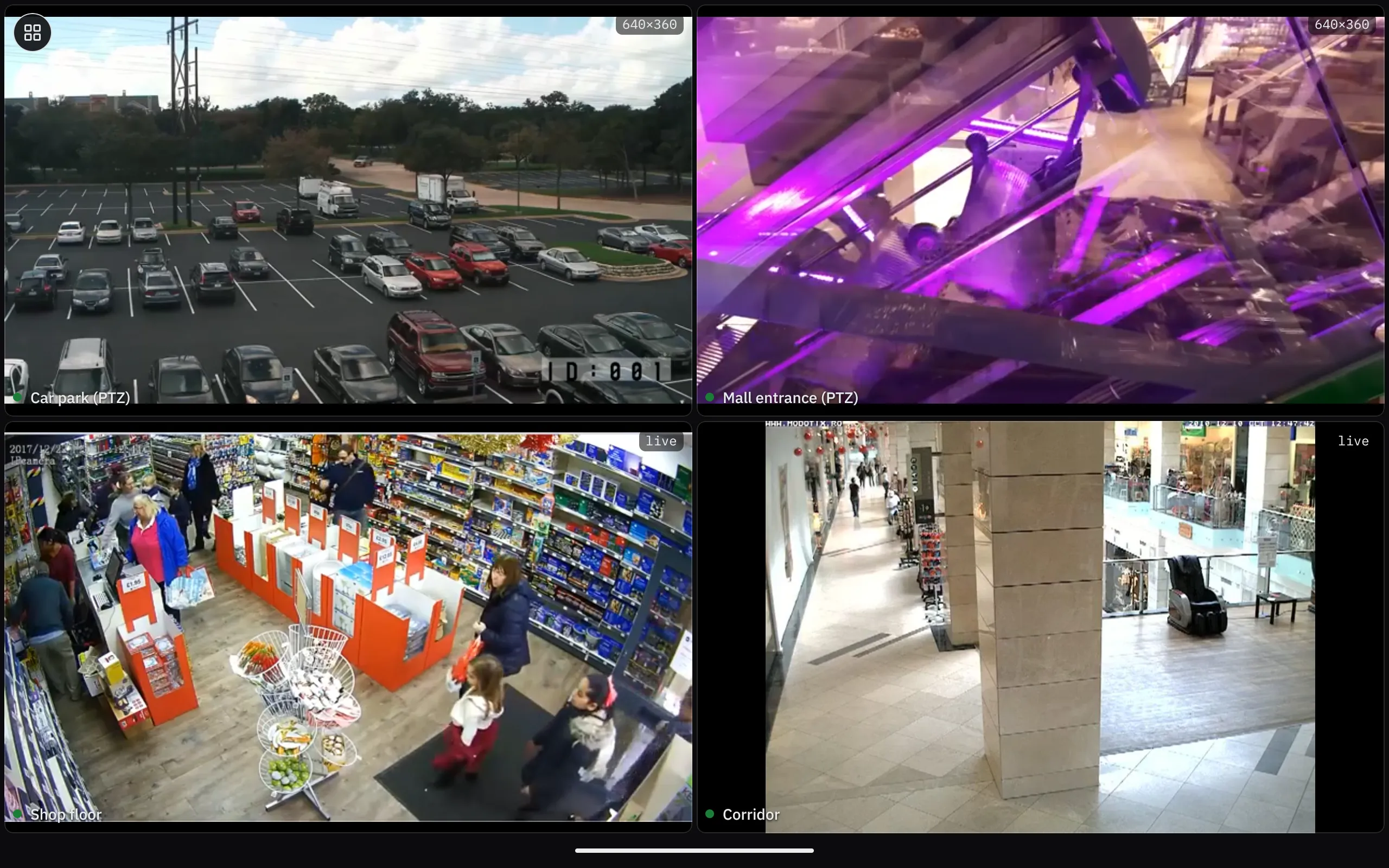
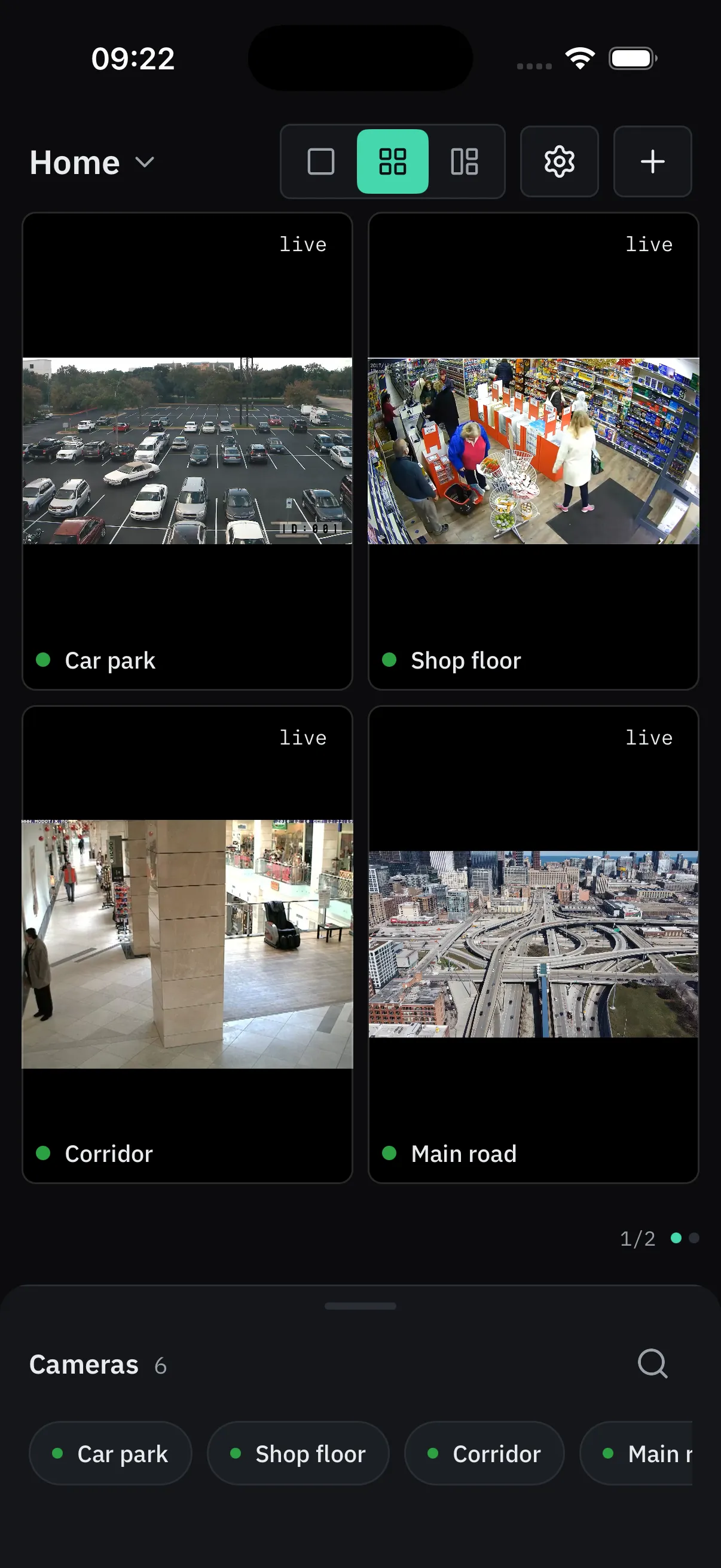
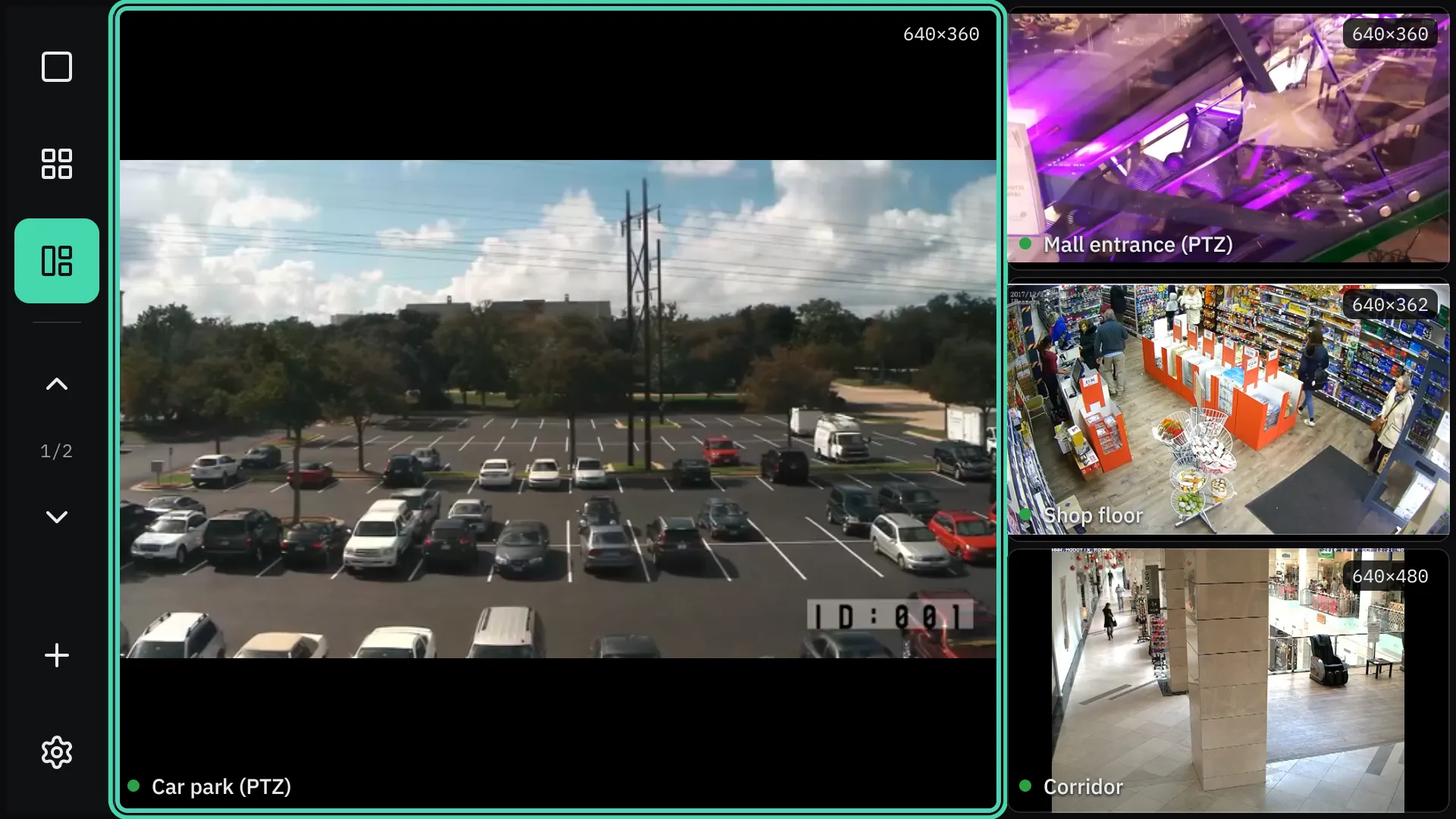
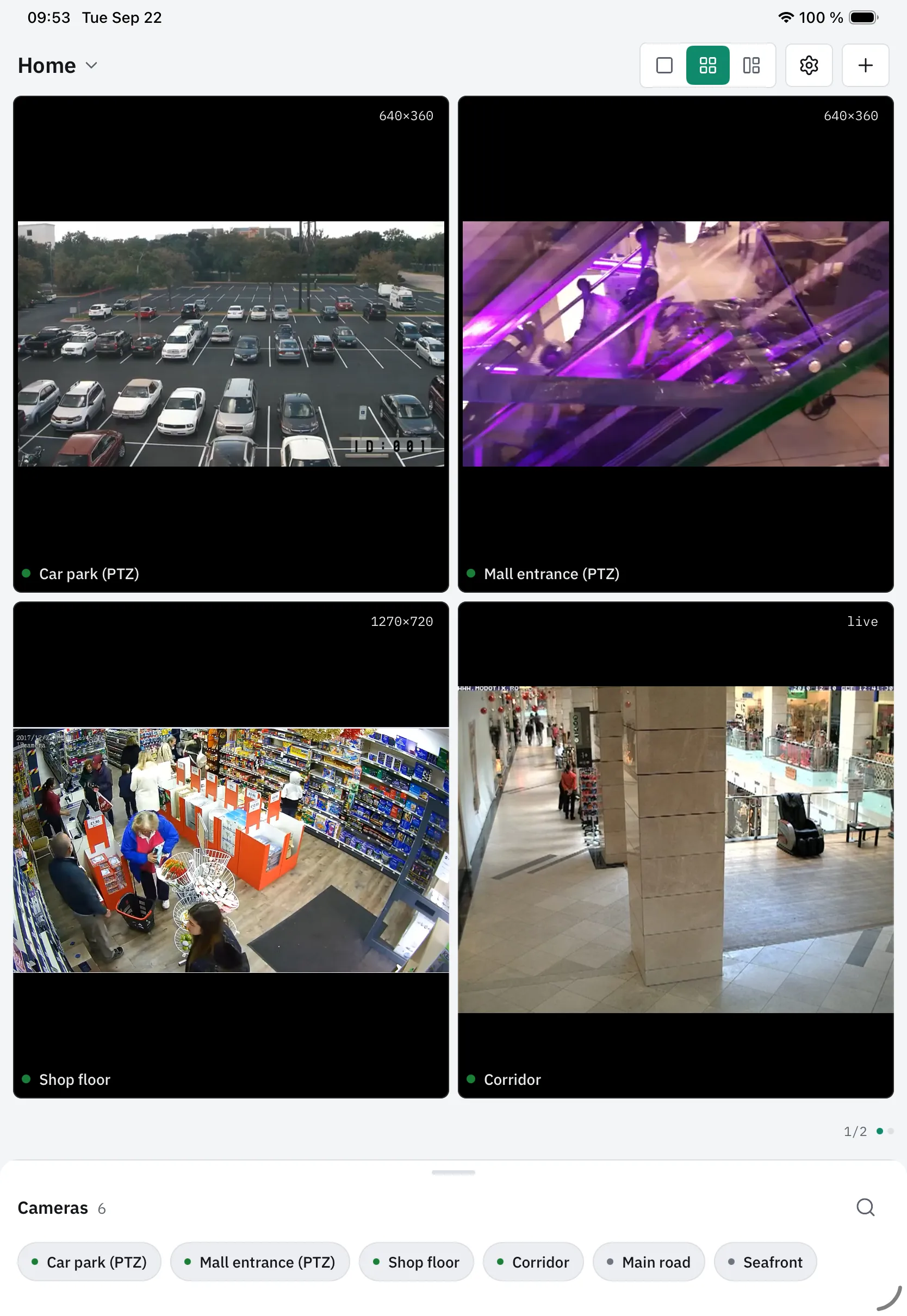
One camera or a whole site: 1×1, 2×2 and 1+3 layouts, saved views such as “Yard” and “Tills”, and a wall that turns its own pages so twelve cameras fit on one screen.
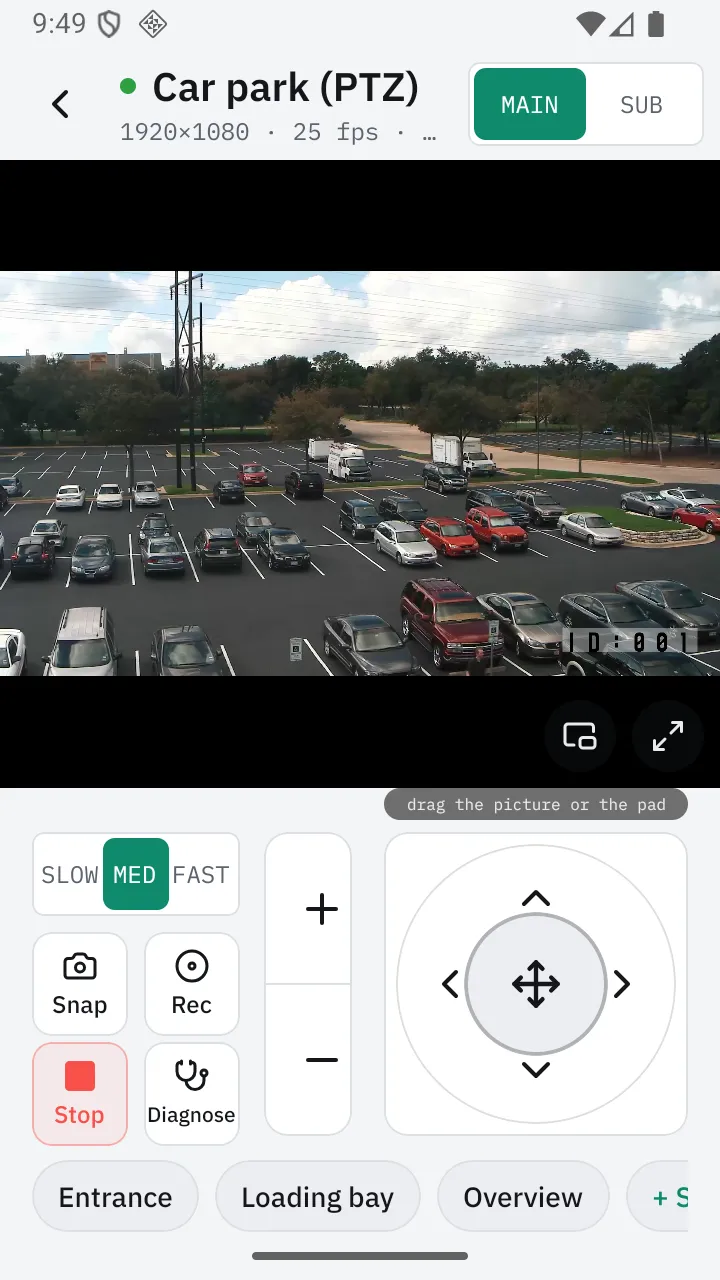
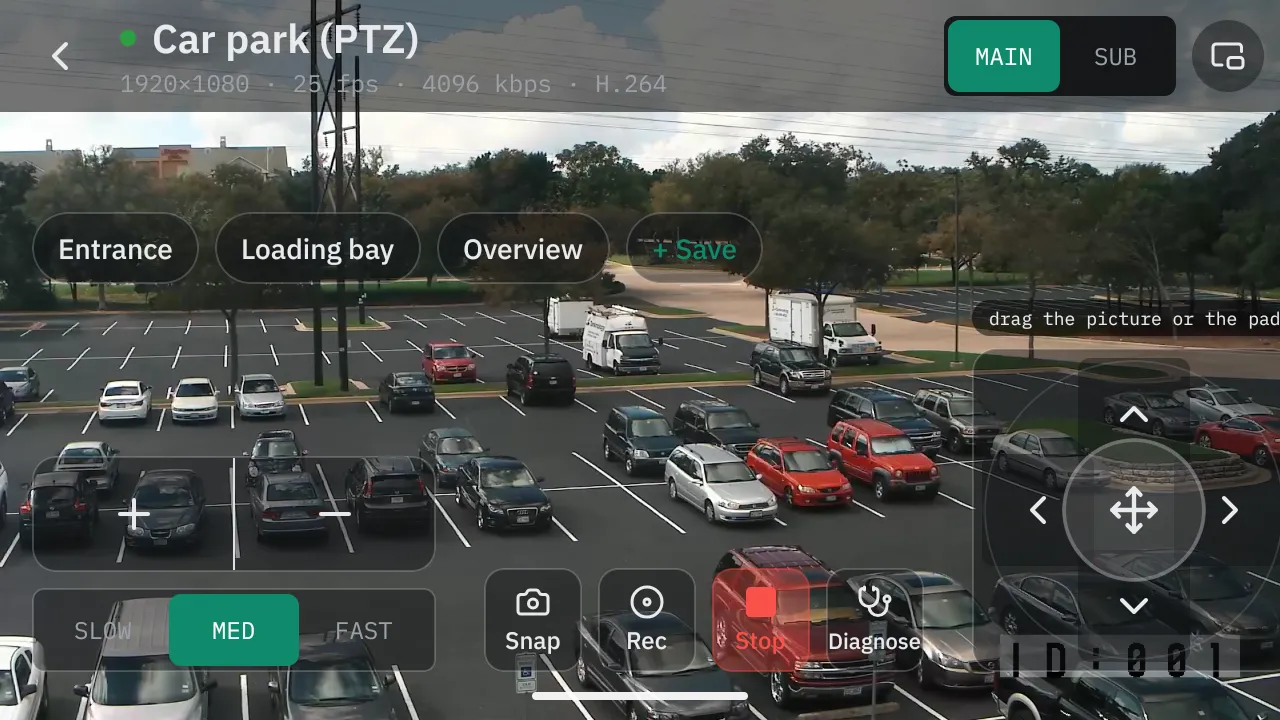
- Turn, tilt and zoom a movable camera with the on-screen controls, and jump to saved positions with one tap.
- A snapshot or a short clip, straight into your photo library.
- When the Wi-Fi cannot keep up with the full picture, ViewTile switches to the lighter one, says so, and one tap brings the full picture back.
Beyond the phone
Set up nearby. Watch from across the room.
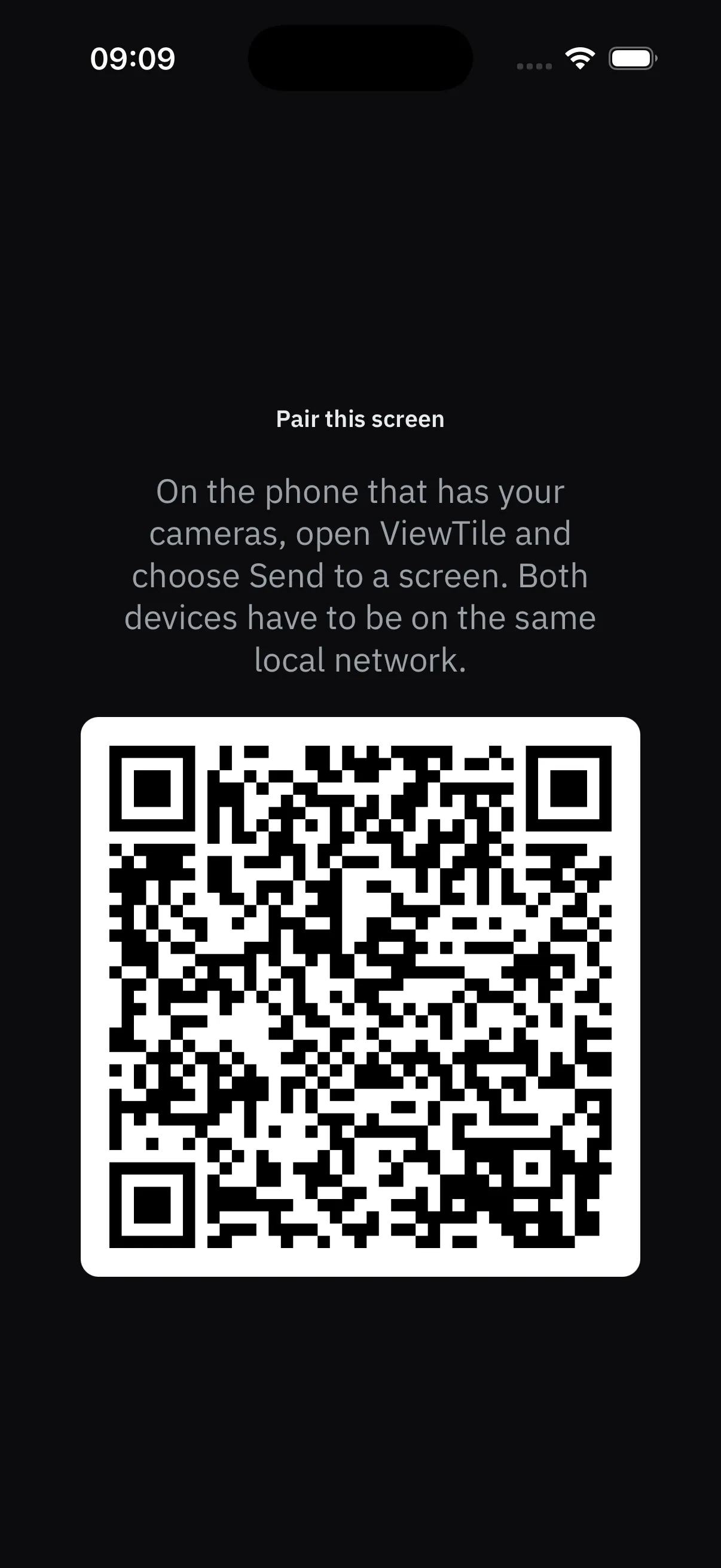
The same cameras on an iPad, an Android tablet or a television. Hand a setup from the phone to the TV with a code on the screen — over your own network and nothing else.
Yours
No cloud of ours in between
There is no ViewTile server. The app talks to your cameras directly over your own Wi-Fi. The only things that leave your network are the ones you send yourself: a snapshot to your photo library, a report or a setup you choose to share.
- No account, no sign-up, no cloud. Install it, find cameras, done.
- Camera passwords stay in the phone’s secure storage and never go into a file, a log or a report. Removing a camera removes its password.
- No analytics, no crash reporter, no advertising — in the app and on this site.
No server in between
Try it before the stores
ViewTile is built for iPhone, iPad, Android phones and tablets, and Android TV. It goes into the stores after it has been tested against real cameras. If you install cameras for a living, write with the brands you have, and a test build comes back with instructions.
- iPhone and iPadbuilt · testing next
- Android phones and tabletsbuilt · testing next
- Android TVin development
- Mac with Apple siliconruns the iPad app